TIMLG Protocol — Devnet Beta User Guide
Welcome to the TIMLG Protocol Devnet Beta. This guide walks you through the full lifecycle of a round—from connecting your wallet to claiming rewards—and explains how to read Order History statuses and the Flow Analysis (Sankey) to audit your results.
Test Environment (Devnet)
You are on Solana Devnet. All SOL and TIMLG tokens used here have no economic value. This environment exists to test UX, protocol stability, and round lifecycle integrity.
1. Getting Started
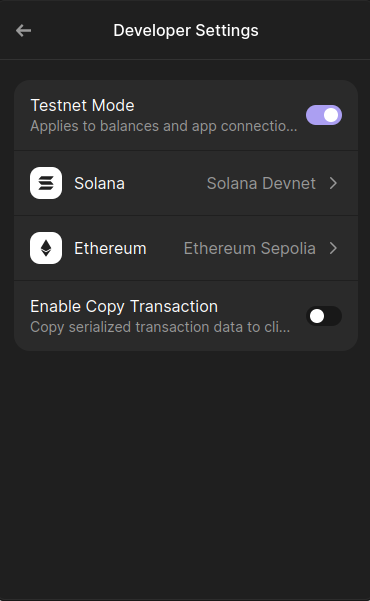
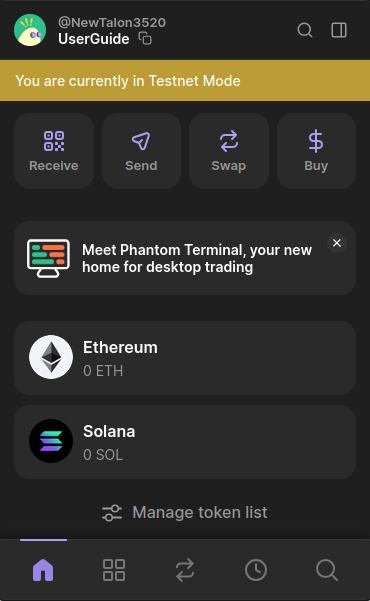
1.1 Configure Phantom for Devnet
Before connecting, ensure your Phantom wallet is set to Testnet mode. This allows you to interact with the Solana Devnet.
| 1. Activate Testnet Mode | 2. Devnet View Active |
|---|---|
 |
 |
1.2 Connect your wallet
Use the Connect Wallet button in the header. If you haven't connected before, the UI will reflect the disconnected state.

1.3 Get Devnet funds (Faucet)
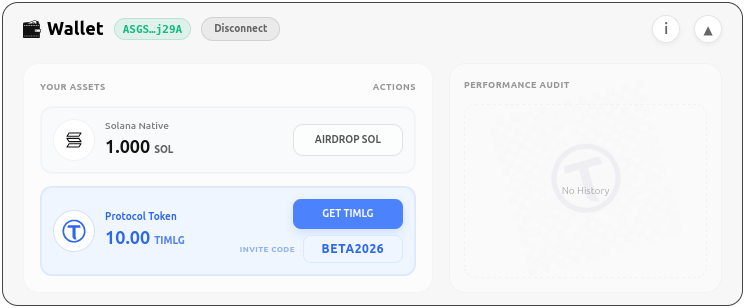
New wallets will show empty balances. You need a small amount of SOL for transaction fees to interact with the protocol on Devnet. You also need TIMLG to play.
[!NOTE] Planned: the protocol is intended to support a relayer in the future so users can participate cost-free (fees sponsored by the relayer).
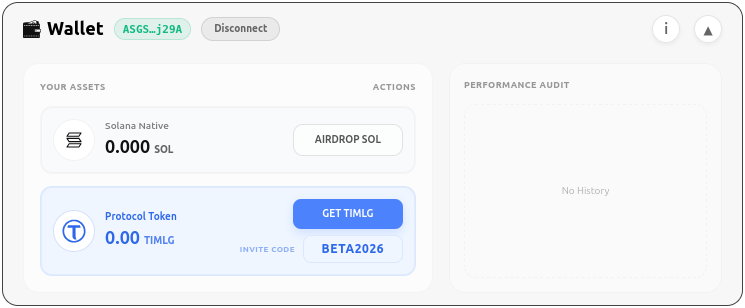
Use the Faucet actions to fund your wallet. After a few seconds, your balances will update.
2. Play a Round (The Play Card)
The Play Card is your main interface for analyzing the timeline and submitting predictions. It is divided into four key sections:
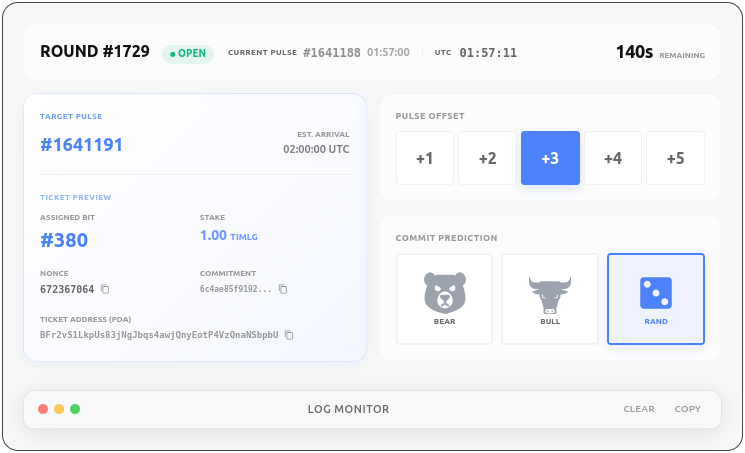
2.1 Interface Breakdown
A. Top Bar (Round & Timing)
- Round ID: The active round identifier (e.g.,
ROUND #1729). - Status: Visual indicator showing if the commitment window is OPEN.
- Current Pulse: The latest 512-bit randomness pulse published on-chain.
- Timer: Real-time countdown to the end of the commitment phase.
(For technical details on phase durations and slot-bound rules, see the Timing Windows specification).
B. Left Panel (Ticket Details)
- Target Pulse: The specific pulse height this ticket is targeting.
- Assigned Bit: Your unique bit index within the 512-bit pulse result.
- Stake: Amount of TIMLG tokens required for this prediction.
- Technical Stats:
- Nonce: Security salt for your prediction hash.
- Commitment: The on-chain SHA-256 hash of your hidden guess.
- Ticket Address (PDA): The unique on-chain account address for this ticket.
C. Right Panel (Controls & Actions)
- Pulse Offset: Buttons to select which future round to target (+1 to +5).
- Commit Buttons: Your tactical action center.
- BEAR: Predicts a 0 (down).
- BULL: Predicts a 1 (up).
- RAND: Auto-generates a prediction for you.
D. Bottom Bar (Transaction Log)
- Log Monitor: A live console showing your protocol interactions in real-time.
3. Order History: Following the Lifecycle
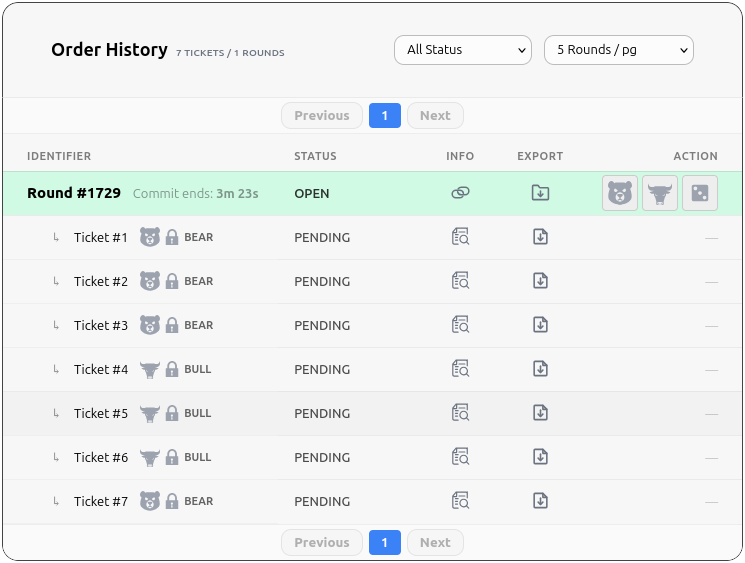
Once you commit tickets, they appear in your Order History. Here is how a round evolves:
Step 1: Tickets Committed
In this example, we have committed 7 tickets to the round. They are currently in the PENDING state.
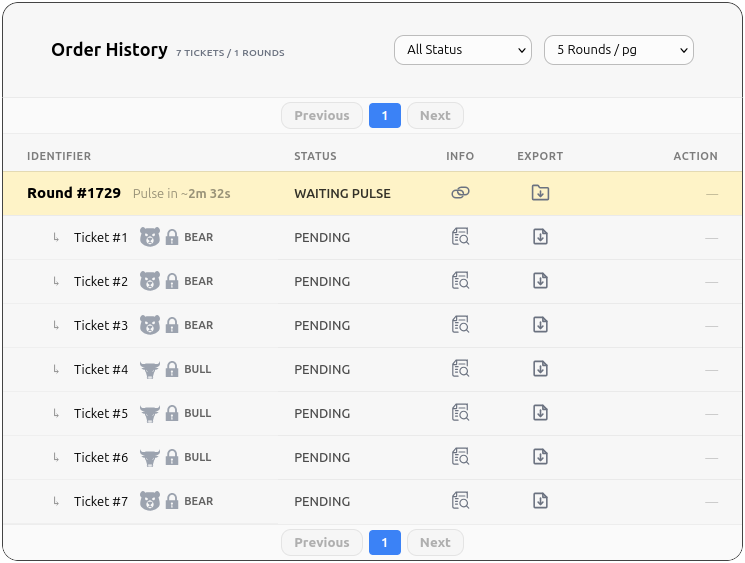
Step 2: Waiting for Pulse
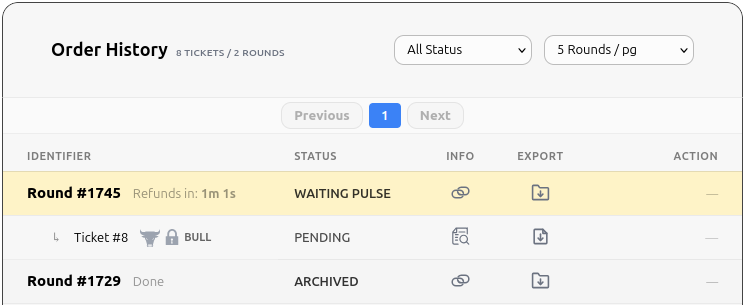
Once the commit window closes, the status changes to WAITING PULSE. The protocol is waiting for the Oracle to publish the result.
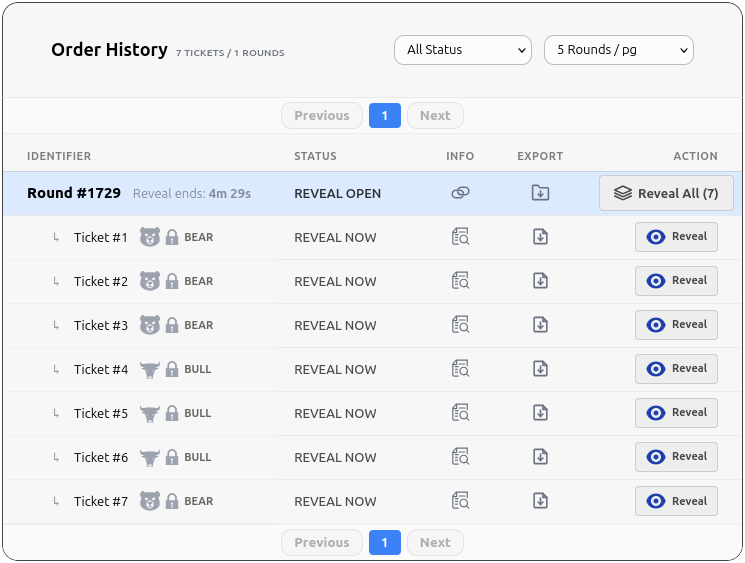
Step 3: Reveal Window Opens
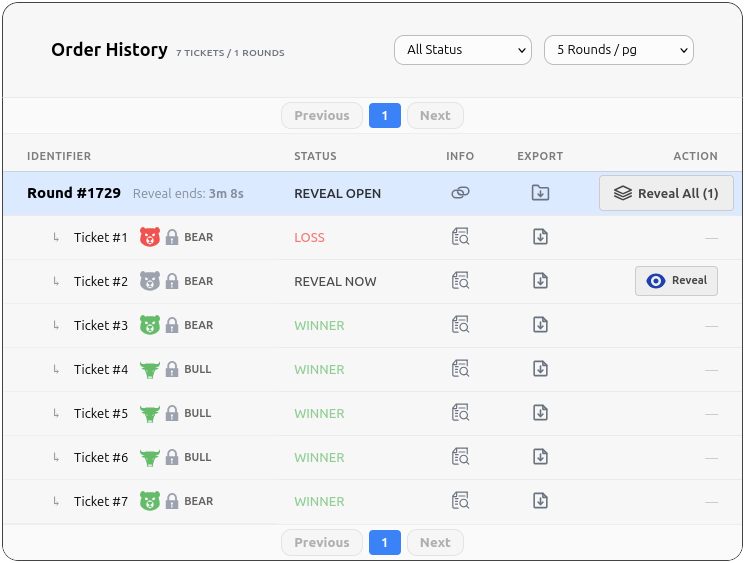
When the pulse is published, the REVEAL WINDOW opens. You must reveal your tickets to prove your predictions.
Step 4: Outcomes Revealed
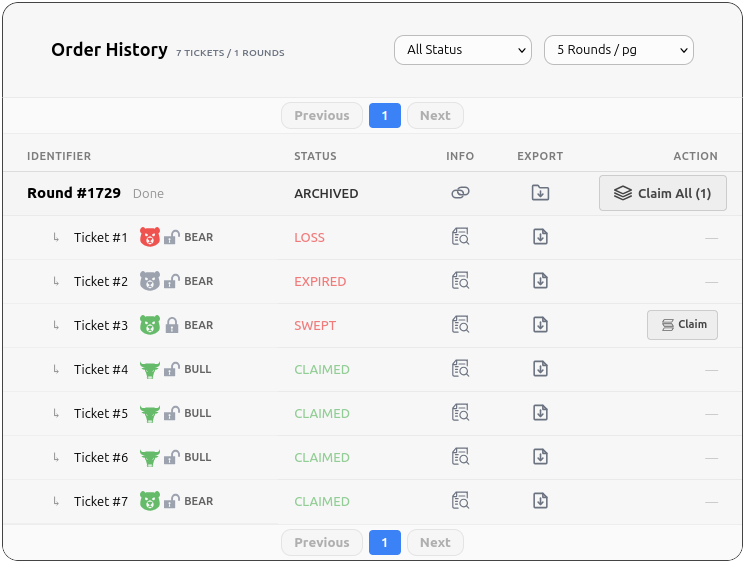
After revealing, you can see which tickets won and which lost. * Winners: Matched the pulse. * Loss: Did not match. * Unrevealed: If you don't reveal in time, the ticket will expire.
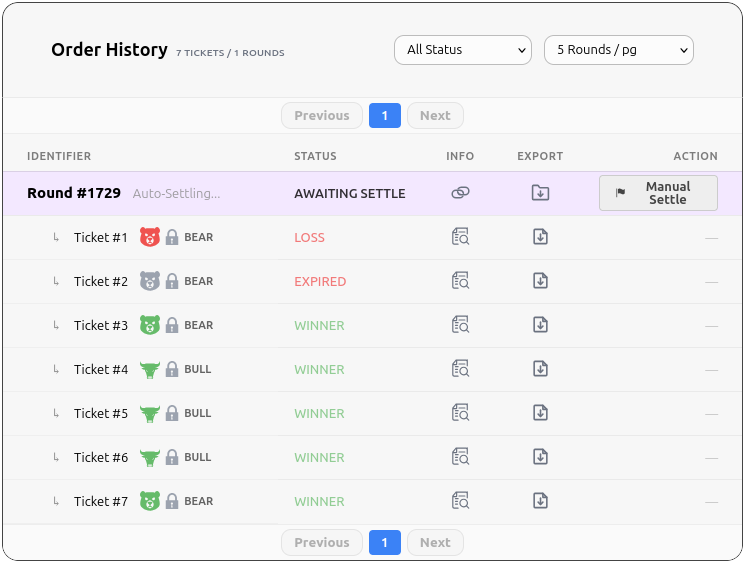
Step 5: Awaiting Settlement
After the reveal window closes, the protocol processes the results.
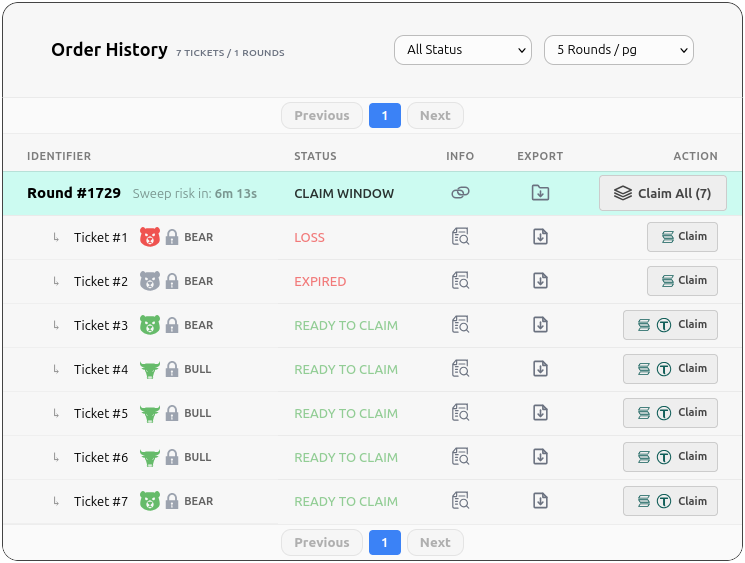
Step 6: Claiming Prizes
Once settled, winning tickets move to the CLAIM WINDOW. You can now claim your winnings.
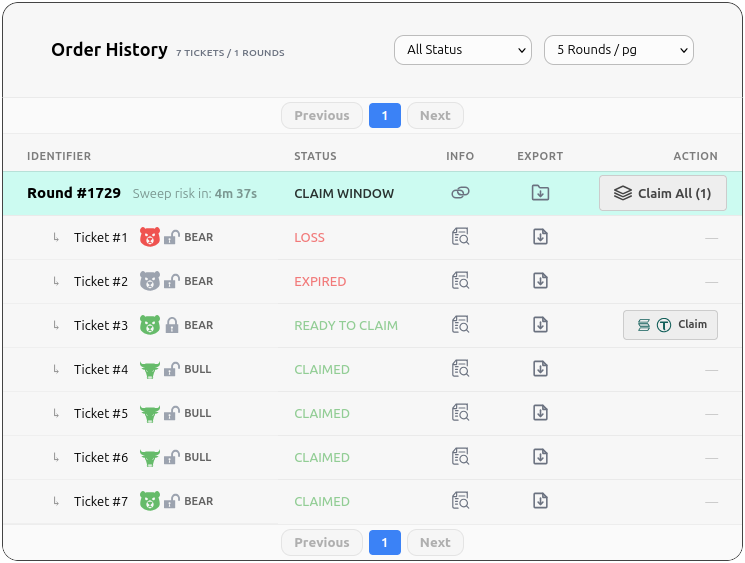
Step 7: Finalizing Claims
As you claim, the tickets are marked as CLAIMED. Any ticket not claimed before the round is swept will be lost.
Step 8: Swept Round
If a winner fails to claim their prize within the required timeframe, the funds are SWEPT to the protocol treasury.
4. Safety: Refund Mode (Escape Hatch)
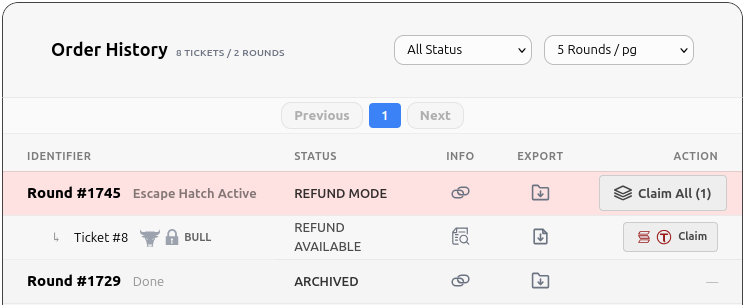
If the oracle fails to provide a pulse, the protocol enters REFUND MODE. This allows you to recover your stake.
4.1 Waiting for Refund Window
The protocol ensures a safe window for all users to request refunds.
4.2 Claiming Refund
Once the window is ready, you can withdraw your original stake.
5. Analytics & Verification
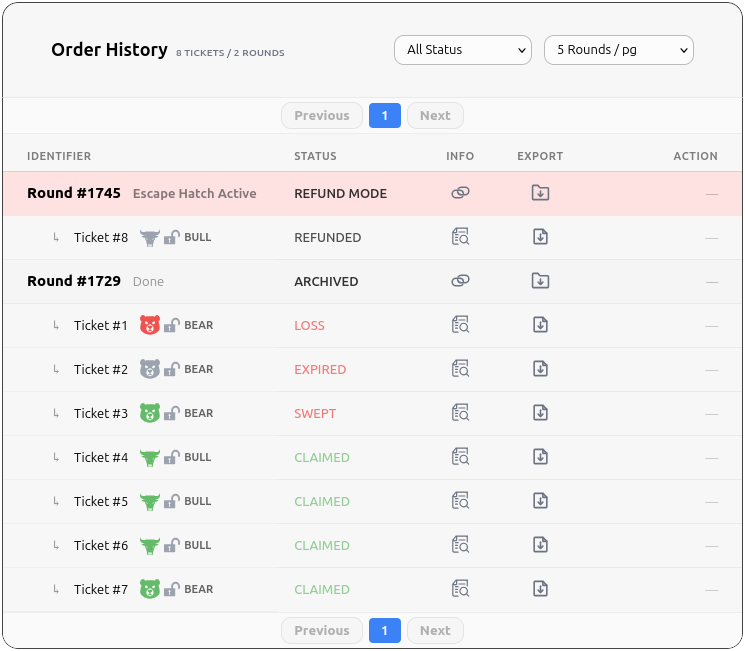
5.1 Final Order History
View your completed rounds in the archives to see the final tally of your performance.
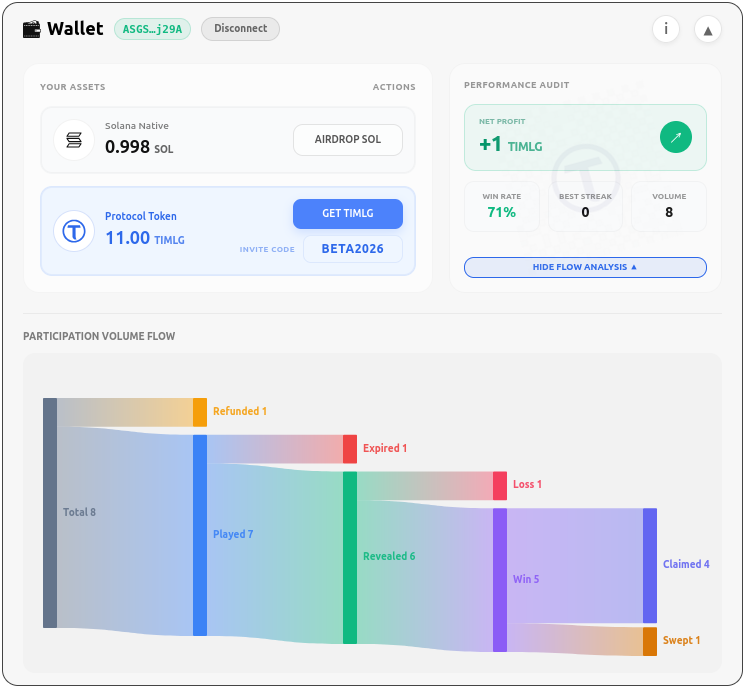
5.2 Flow Analysis (Sankey)
The Flow Analysis chart provides a visual breakdown of your ticket lifecycle—from played to claimed, lost, or swept.
6. Status Glossary
- OPEN: Commit window is active.
- PENDING: Prediction recorded, waiting for pulse.
- WAITING PULSE: Oracle is generating the result.
- REVEAL OPEN: You can now reveal your prediction.
- WIN / LOSS: Final outcome of a revealed ticket.
- CLAIM WINDOW: Winners can collect prizes.
- SWEPT: Prize was not claimed in time.
- REFUND MODE: Safety protocol active; stakes can be recovered.
- ARCHIVED: Round is fully finalized.